Testing settings
Choose how much testing a project gets — how deep test cases go, whether Fabric drafts them at all, which environments runs target, and how often CI results are pulled in.
Not every project needs the same testing. A prototype and a regulated production system both benefit from test cases, but asking for security and end-to-end coverage on a two-week spike wastes effort and credits. Fabric's testing settings let you set that level once per project, and everything downstream follows it.
Two pages hold the configuration, both under Project ▸ Settings:
- Testing — the testing policy: depth, required test types, evidence, result sync, and which pull-request review lenses run.
- Environments — the deployed targets a Fabric-driven run can point at.
Can't see these pages? Both are part of the Testing feature and appear only when it's enabled for your deployment. If Settings ▸ Testing is missing entirely, the Testing feature is switched off — ask whoever administers your Fabric instance to enable it. This is the first thing to check when a project looks like it has lost its testing configuration.
Decide whether Fabric writes test cases at all
Three switches sit at the top of Settings ▸ Testing, under Test-case generation. They decide whether test cases are generated, when in a feature's life that happens, and what Fabric does when one fails. All three save immediately — unlike the policy below them, which is a draft until you press Save.
| Switch | Default | What it does |
|---|---|---|
| Generate manual test cases | On | Fabric drafts test cases from a feature's acceptance criteria |
| Apply TDD approach | Off | Test cases are written before implementation, and the requirements are reviewed against them |
| Open bugs for failing tests | Off | When your CI reports a linked case as failing, Fabric opens a bug for it automatically |
"Open bugs for failing tests" opens at most one bug per case. A case that keeps failing does not accumulate duplicates, and a bug that is already open is not reopened. Leave it off if you would rather triage failures yourself from the Runs segment and promote only the ones worth tracking.
Turning Generate manual test cases off stops the drafting entirely — no cases are produced and no credits are spent on them. Everything else in the Testing tab keeps working: you can still author cases by hand, sync them, and read CI results.
Apply TDD approach changes the order of the feature lifecycle:
Default order (TDD off)
Requirements are generated, the feature is implemented, the feature is reviewed against its requirements, and then test cases are drafted from the finished specification.
The review is the Generate QA analysis button on the feature's Testing tab, and completing it is what starts the drafting — you do not press Draft test cases with AI as well. It runs once per feature: a second analysis over a feature that already has cases drafts nothing.
Test-first order (TDD on)
Test cases are drafted straight after the requirements — before any implementation. The moment is the feature reaching Ready for Dev, whether you drag it there on the roadmap or move it from the transition dialog inside the feature editor. The requirements are then reviewed against the flows those cases describe, which is where test-first earns its keep: writing the cases exposes gaps in the specification while it is still cheap to fix them.
After implementation
With TDD on, the feature review considers both the requirements and the test cases, and the cases are then updated to match the flows that were actually built.
What test-first actually enforces
With Apply TDD approach on, Fabric will not start an implementation session for a feature that has no test cases. The refusal names both ways forward: add a case — by hand or with AI — or turn the setting off.
It checks that a case exists, not that one passes. Nothing can pass before the code is written, so a stricter rule would leave a test-first project unable to start any work at all. Where the case came from does not matter: a hand-written one counts, so turning off Generate manual test cases does not disable this.
Two places warn you before you reach that point, because Fabric can only refuse the implementation it starts — someone writing code in their own editor passes no such check:
- the feature's Testing tab carries a marker while the feature has no cases;
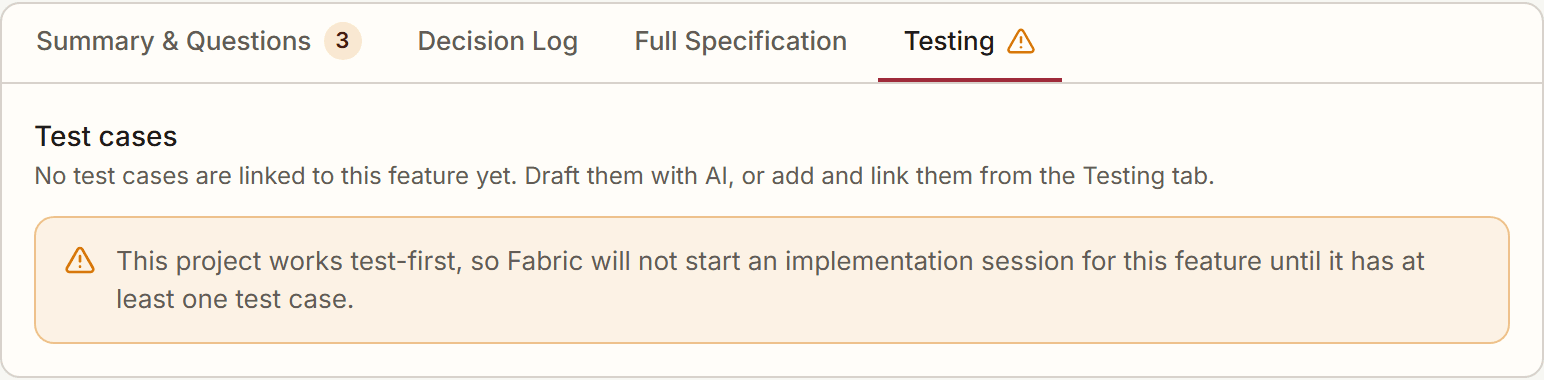
- moving a feature to Ready for Dev shows a note in the transition dialog.
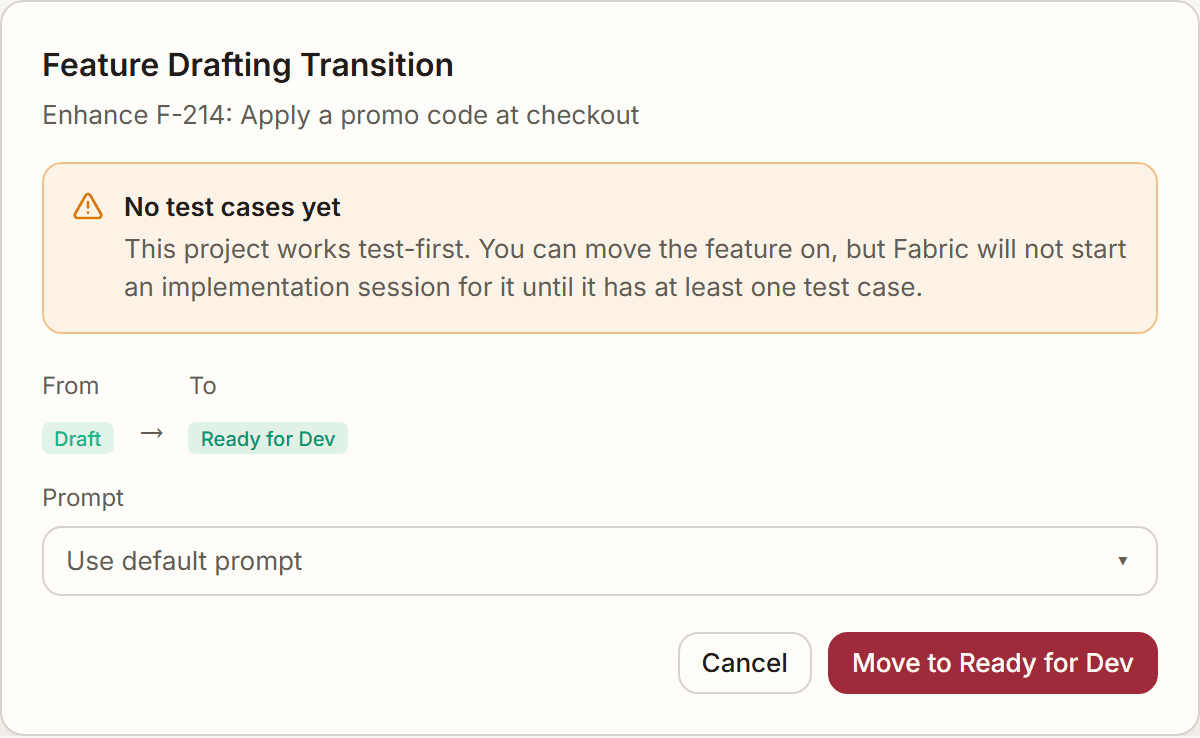
That note is informational. Moving a feature forward is a planning decision, so it is never blocked; only starting an implementation is.
This applies only to projects with Apply TDD approach switched on, which is off by default. A project that never turns it on sees none of it.
Removing the last test case
A soft-deleted case does not count as coverage, so deleting the only case on a feature restores the refusal.
Set the testing depth
Strategy & depth is the single most consequential choice on the page. It decides two separate things: how thoroughly Fabric explores each acceptance criterion, and which kinds of test case it may write at all.
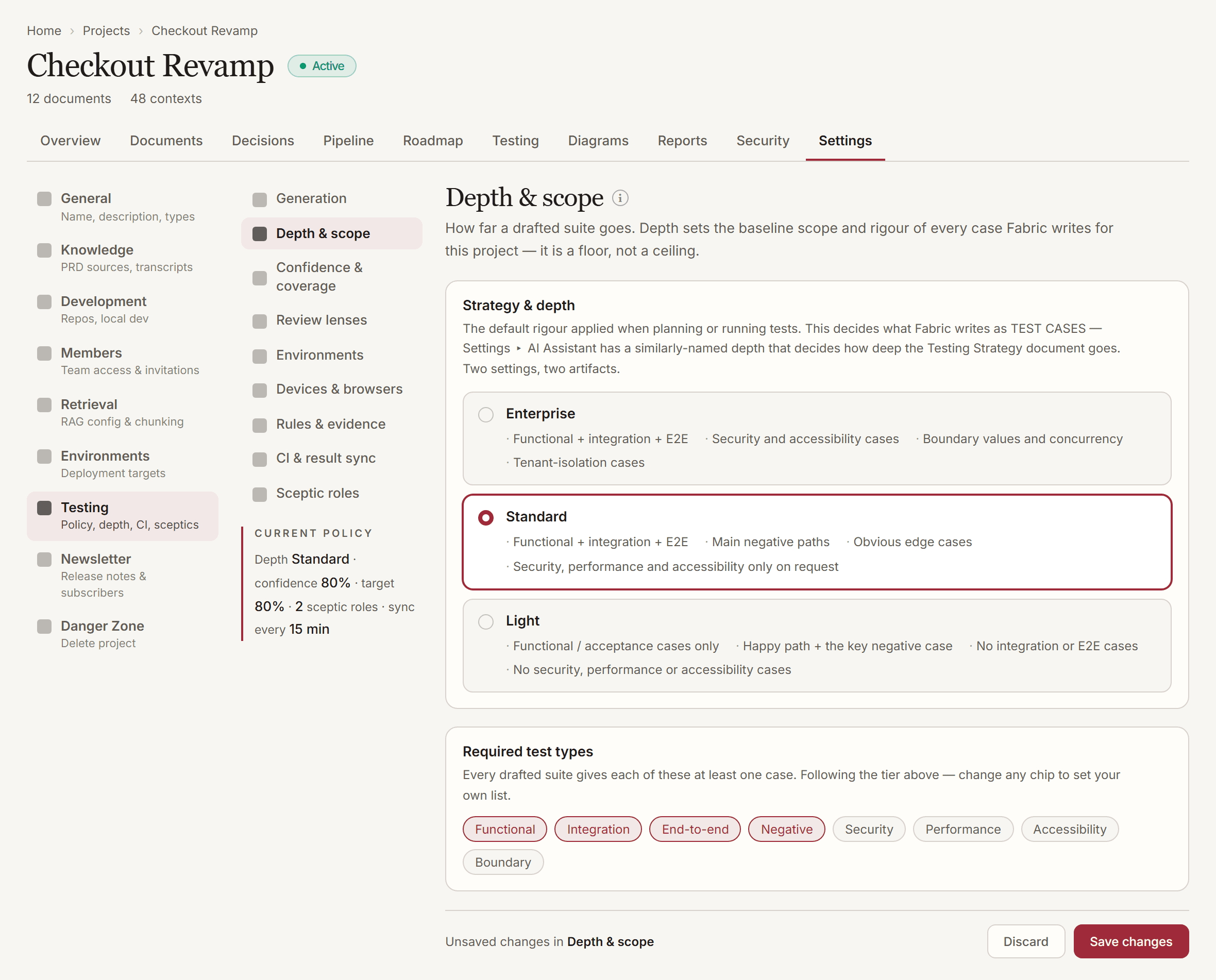
Each option states what it actually causes, and every line on it is enforced when cases are drafted.
| Depth | What gets written |
|---|---|
| Light | Functional / acceptance cases only — the happy path and the key negative case. No integration, end-to-end, security, performance or accessibility cases. |
| Standard | Functional, integration and end-to-end cases, covering the main negative paths and obvious edge cases. Security, performance and accessibility only where an acceptance criterion explicitly calls for them. |
| Enterprise | Everything above, plus security cases (auth, tenant isolation, injection, data leaks), accessibility cases (keyboard navigation, labels, contrast), boundary values, concurrency and tenant-isolation cases. |
Light really is lighter. The depth is stated to the AI as an exclusion as well as an inclusion — a Light project is told not to reach for end-to-end or security cases on its own initiative, even where they would obviously add value. That is the point: a lighter tier is a deliberate choice about cost and scope, not an oversight for the AI to correct.
Your depth caps the sceptic roles. A role whose dimension your depth excludes writes nothing, so setting Light genuinely gives you a light suite even with all five roles enabled. To keep a lens at a lighter depth, tick its dimension under Required test types below — an explicit choice there wins over the tier.
If a case turns up outside its tier, it arrives as Proposed. On a Light project, an integration or end-to-end case the AI wrote anyway is created as Proposed rather than Draft — visible and reviewable, but not counted towards your coverage until you accept it.
The same applies to a case that turns up in a dimension the tier defers. On Light and Standard, a security, performance or accessibility case written without being asked for arrives as Proposed even if it sits at an allowed level of the pyramid.
Nothing is thrown away, and nothing joins your suite unasked.
Depth applies to newly drafted cases. Changing it does not rewrite cases you already have, and it takes effect on the next drafting run — there is nothing to restart.
Required test types
Under the tier selector, Required test types shows the six kinds a suite can be asked for — Functional, Integration, End-to-end, Security, Performance and Accessibility — and every drafted suite gives each selected kind at least one case.
By default the chips follow your tier, and the page says so: pick Light and you see Functional alone; pick Enterprise and Security and Accessibility join the row. Nothing is hidden behind the tier name — what it requires is on screen.
Click any chip to set your own list instead. From then on the tier no longer decides it, and the page says that too, with a Follow the depth tier again link that hands the decision back.
Performance is never automatic. It is selectable but sits in no tier's default, because a performance case is worth writing where an acceptance criterion names one rather than on every feature. Select it deliberately and every suite will include one.
Clearing every chip does not mean "require nothing". An empty list is how a project says follow the tier, so unselecting the last chip snaps the row back to your tier's set rather than leaving it blank. If you want Fabric to stop drafting cases altogether, that is the Generate manual test cases toggle under Generation — one setting, one meaning.
Each drafted case also arrives tagged with the level of the test pyramid it sits at — unit, integration, end-to-end, or manual — so the coverage matrix is populated without anyone classifying cases by hand. Where the AI declines to say, the case shows as Unset and you can set it yourself.
There is a second depth setting, and it is not this one. Settings ▸ AI Assistant has a Testing Strategy depth — Early-stage / Standard / Production-Enterprise — that controls how deep a generated Testing Strategy document and the per-feature testing analysis go. The depth on this page controls test-case drafting.
The two now use near-identical words on purpose: both describe the same idea of a light, a standard and a full-rigour project, so calling one "Average" and the other "Standard" only made them look unrelated when they are not. They remain separate settings for separate artifacts — changing one does not change the other, and each page says which artifact it governs.
Tune the rest of the policy
Everything below the depth selector is a draft until you press Save, and Discard returns you to the last saved values.
Evidence policy
What proof a run must capture before a verdict is recorded: Screenshot required (the default), Optional, or None.
Required test types (sceptic roles)
Adversarial reviewers that add extra cases during planning, each with its own lens — Security Reviewer, UX Skeptic, Performance Critic, Accessibility Auditor, and Edge-Case Hunter. Only UX Skeptic is on in a new project; enable the others when you want their lens. Cases they contribute arrive as Proposed, so nothing enters your suite without review.
Your depth caps these roles. A role whose dimension your depth excludes writes nothing — so a project set to Light does not receive security, performance or accessibility cases even with those roles enabled.
To keep a lens at a lighter depth, tick its dimension under Depth & scope. An explicit choice there wins over the tier, so a Light project that ticks security keeps its Security Reviewer.
Automation target
Under Confidence & coverage: the level the automation figure on the Testing tab is measured against. Defaults to 80%.
This target is reporting only — it shapes what the coverage rings tell you, and blocks nothing. Turning off Index coverage removes the comparison entirely.
Test Coverage Target
Under Sign-off: the percentage of a feature's acceptance criteria that must have at least one test case linked before the feature can be marked Done. Off by default — switching it on pre-fills 30%.
A feature below the target cannot be marked Done until someone records why. The refusal names the numbers — how many criteria are covered, out of how many, and what the project asks for — so the choice is between adding cases for the uncovered criteria or saying why you are shipping without them.
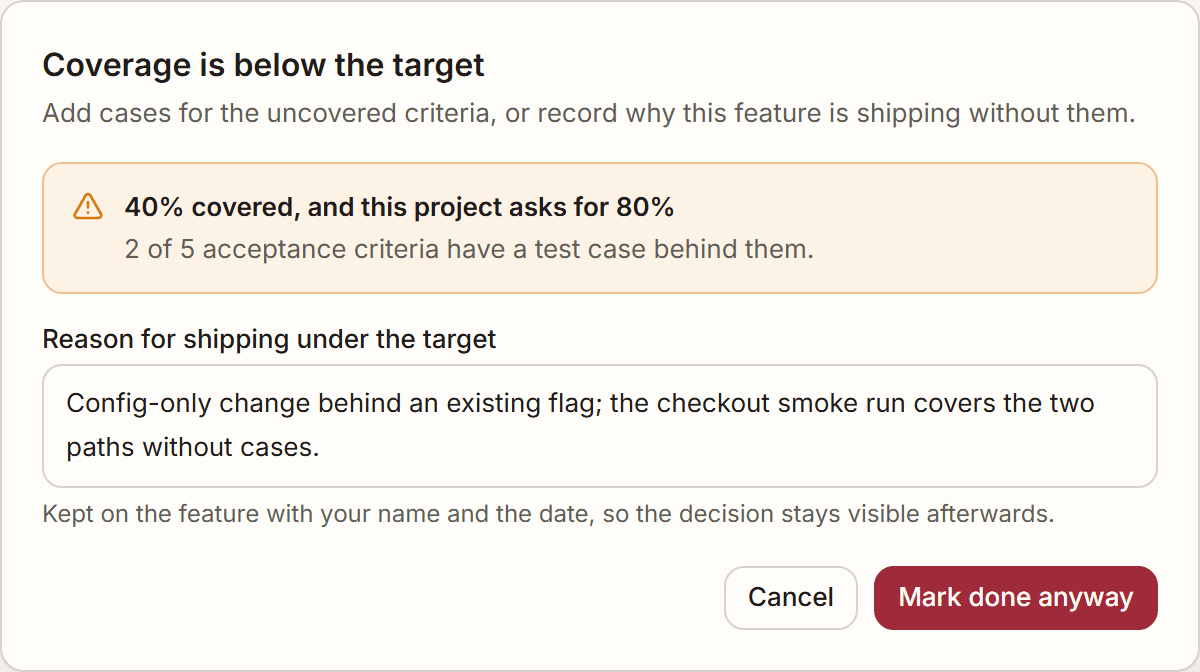
The reason is kept on the feature, with who gave it and when. That record is the point: a team shipping under target repeatedly can see that it did, and why.
Coverage counts criteria covered, not cases written — ten cases all pointing at the same criterion is not ten coverage.
Switching the gate off — or setting the target to 0 — disables the check entirely. A feature with no acceptance criteria always passes it — there is nothing to cover, and blocking it behind a target it can never reach would help nobody.
The check applies when a feature moves to Done, so raising your target does not freeze features you have already shipped.
Confidence threshold
How sure Fabric has to be about a step before it records a pass or a fail. Defaults to 80%.
When Fabric runs a test case it judges each step against what the case says should happen, and it reports how confident it is in that judgement. Below your threshold, it records Needs review instead of a verdict — see Needs review below.
Set it to 0 to switch the check off and always take Fabric's verdict.
Devices and browsers
The viewport and browser a Fabric-driven run uses. Defaults are 1920×1080 and Chrome — one combination, since that is exactly what a run reads. Firefox and WebKit are available, and any other window size fits the free-text field.
Keep evidence for
How many days a run's screenshots are kept. Defaults to 90.
Evidence outlives the run, the test case and the project it came from — deleting a case does not erase the proof of what it once did, and an auditor asking what a run actually showed should not depend on whether somebody has tidied up since. A daily sweep removes anything past your window.
Set it to 0 to keep screenshots indefinitely.
House rules
Free-text rules and implementation notes handed to the runner before it drives a case — anything it should know that isn't in the test case itself.
Required sign-offs
Under Settings ▸ Testing ▸ Sign-off: how many people must approve a feature before it can be marked Done. Defaults to 0, which switches the requirement off entirely — nothing changes for a project that leaves it alone.
Set it to 2, and a feature cannot move to Done until two different people have signed it off. The same person approving twice does not clear a threshold of two.
Devices and browsers are defaults
The Devices & browsers section sets the browser and screen size a run uses when you do not choose one as you start it. A run exercises one combination — Fabric does not run a matrix across every browser you select — so treat these as your default, and override them per run when you need something else.
When a run says "Needs review"
A test case Fabric ran, where it was not confident enough in its own judgement to call it a pass or a fail, comes back as Needs review rather than a verdict. The step that triggered it says what was expected and what Fabric observed, so you can settle it yourself in a few seconds.
Two things it is not:
- Not Blocked, which means the case could not be attempted at all — the page never loaded, or an element was never reachable. A case needing review did run.
- Not Awaiting review on the Cases segment. That filter is about cases a sceptic role proposed and nobody has accepted yet — a question about whether the case should exist, not about how a run of it went.
On the Cases segment itself, a case whose last run needed review shows its result as Blocked, because that list reports the shared result vocabulary CI runs also use. The precise state, and the step that caused it, are on the run in Testing ▸ Runs.
A run carrying one is reported as Needs review too, unless something in it genuinely failed or was blocked, in which case that takes priority. It is never reported as passed: a green run over a verdict Fabric would not stand behind is exactly what the threshold exists to prevent.
Seeing more of these than you expect? Lower the confidence threshold under Confidence & coverage, or set it to 0 to take Fabric's verdict every time. Raising it makes Fabric more cautious and sends more cases to you.
Choose which pull-request review lenses run
Settings ▸ Testing ▸ Pull-request review has one switch per lens. Both are on by default, so a project that never opens the page behaves as it always did.
| Lens | Cost | Needs |
|---|---|---|
| Test coverage | Uses AI, spends credits | A configured AI provider |
| Architecture | No AI, no credits — computed | An Atlas analysis of the repository |
The architecture lens checks two things, both from your repository's own import graph: circular imports, and the import rules your project declared. It infers nothing from folder names, so a project that declares no rules gets findings about cycles only.
Turning a lens off stops new runs. Findings it already produced stay readable, because switching a lens off is not the same as deleting somebody's accepted findings.
A lens that is off refuses before spending anything. It does not fetch the pull request, call a model, or read the import graph and then discard the result — the refusal happens first, which is the only version of "off" worth having.
Declare the imports your architecture forbids — or requires
Settings ▸ Testing ▸ Pull-request review ▸ Architecture rules takes one rule per line, and the architecture lens checks your import graph against them.
src/ui/** -> src/db/** : the UI must not reach the database directly
src/routes/** => src/auth/guard.ts : every route checks the session
-> forbids an import. => requires one: a file matching the left pattern that
imports nothing matching the right is a finding. Everything after the colon is
your reason, and it is shown on the finding — it is required, because a rule
whose purpose the reader has to reverse-engineer is one they will assume is
wrong.
Globs are deliberately small: ** crosses directories, * does not, ? is one
character, everything else is literal. No brace expansion, no negation. A bigger
dialect is a bigger surface for a rule to match files its author never meant.
Only what this change touched is reported. A rule your repository has been breaking for a year is the repository's problem; attaching it to an unrelated pull request buries what that change actually did. A malformed line is named by line number rather than rejecting the whole box, and the other rules still run.
Review every pull request automatically
Review every pull request automatically is off by default, and it is the one switch here that must be: turning it on makes Fabric write a comment into your team's pull requests. Everything else on this page defaults to what a project already behaved like.
With it on, each pull request is reviewed as it is opened or updated and the result posted as one comment, edited in place on later pushes. It needs a webhook on the repository and a connection with write access — both in Pull Requests.
See Pull Requests for what each lens looks for.
Require sign-off before a feature is done
When Required sign-offs (Settings ▸ Testing ▸ Sign-off) is above zero, each feature's Testing tab gains a sign-off panel showing who has approved and how many approvals are still needed. At zero that panel hides itself, so a project that has not set a threshold sees nothing about sign-offs anywhere.
Sign off a feature
On the feature's Testing tab, press Sign off. You can add a short note — "verified on staging against AC 3" — which is stored with your approval.
Change your mind
Press Withdraw my sign-off to remove it. You can only withdraw your own; nobody can remove somebody else's approval on their behalf.
Mark the feature done
Once enough people have signed off, the feature can be moved to Done as usual. Before that, the move is refused with a message naming how many approvals are recorded and how many are needed.
One approval per person. Pressing Sign off twice updates your note — it does not add a second approval. A requirement of two genuinely means two different people, which is the entire point of setting it.
Only "Done" is gated. Moving a feature to To do or Discovery is never blocked — those are ordinary board movements, and blocking them would stop you organising work you haven't finished yet.
The device, browser and environment settings are defaults, not constraints. A run that names its own browser, resolution or environment wins; the stored value only fills the gap.
Choose how often a document refreshes
A document enrolled in auto-refresh carries its own cadence:
| Cadence | Refreshes |
|---|---|
| On every deploy | Whenever a deployment lands, on no schedule at all |
| Daily | Every day — for a document that tracks something moving that fast |
| Weekly | Every 7 days |
| Bi-weekly | Every 14 days (the default) |
| Monthly | Every 30 days |
Each document drifts a few hours off its exact anniversary, on purpose. Fabric spreads documents across a window — up to six hours for Daily, up to a day for the longer cadences — so a batch enrolled on the same afternoon does not all come due in the same minute, forever. The offset is derived from the document itself, so it is stable: a Daily document refreshes at roughly the same time each day, not at a random hour.
On every deploy
On every deploy replaces the schedule entirely. Fabric treats a successful CI run on the branch it watches for test results as a deployment.
Set the cadence
On the document, open the auto-refresh settings and choose On every deploy.
Ship
When Fabric next pulls CI results and sees a successful run on that branch, the document is marked for refresh.
Review the update
The refresh behaves exactly as a scheduled one: it drafts an update for you to accept, unless you have turned on Apply automatically.
The refresh starts on the next sweep, not the instant you deploy. A deploy marks the document as due and Fabric's hourly pass does the work. That keeps every safeguard a scheduled refresh has — it will not touch a document somebody is editing, and it will not run under someone who has lost access to the project.
A failed build is not a deploy. Only a successful run counts, and a status Fabric doesn't recognise is treated as "not a deploy" rather than guessed at — a build going red should never spend your credits rewriting documents. If your pipeline reports success under an unusual status, the refresh simply waits for one it recognises.
Control how often CI results arrive
Automatic result sync decides whether Fabric pulls test results from your connected CI on its own, and how often — every 15 minutes (default), 30 minutes, 1 hour, or 4 hours.
Turning it off does not remove the manual path: Sync now in the Testing tab always works. The interval is a floor, not a rival schedule — Fabric will not check more often than you allow.
Intervals are offered as a fixed set rather than a free-text schedule on purpose. A cron box invites * * * * *, and a project quietly overwhelming its own CI provider's API is a worse outcome than a slightly staler result.
Add an environment
Settings ▸ Environments holds the deployed targets a Fabric-driven run can point at — typically a staging or test deployment.
Create the environment
Give it a name and the base URL Fabric should open.
Add sign-in credentials (optional)
If the environment needs a login, store the sign-in URL and credentials. Fabric holds these encrypted and injects them into a run without ever writing them into generated scripts, logs, or run history.
Pick a default
Set one environment as the project default so a run that doesn't name a target still knows where to go. Deleting that environment degrades the project to "no default" — it never cascades into your testing policy.
Point Fabric at test and staging environments. A Fabric-driven run performs real actions against whatever URL you give it — it fills forms, clicks buttons, and submits data.
Next Steps
Pull Requests
Point Fabric at a pull request and it reads the diff through your connected repository, then keeps exactly what it read — so you can see what a review would be based on.
Security & Accessibility Scanning
Run AI agents that scan your project's features and documents for OWASP Top 10 security risks and WCAG 2.1 AA accessibility issues, with severity and remediation for every finding.