Test Cases
Author test cases with ordered steps, sync them to your PM tool, group them into plans, link them to the work they verify, and let the project AI use them as context.
Each Fabric project has a Testing tab where you author test cases the way you would in Azure DevOps Test Plans or TestRail — ordered Action + Expected steps, a state, a priority, an owner, and tags. From there you can sync cases to your project-management tool, group them into plans, link them to the features and bugs they verify, draft new cases from a feature's acceptance criteria with AI, and see how those cases actually did when they ran.
In Fabric, each case carries a TC-001 identifier (per project) and each plan a TP-001. A case has a lifecycle state — Proposed, Draft, Ready, or Closed — and a priority from Low to Critical.
Results come from two places. Fabric reads what your CI reported — Azure DevOps, GitHub Actions and GitLab CI — and links each automated test back to the case it verifies. Fabric can also run a case itself, driving a real browser through its steps against one of your environments. Both kinds of run appear in the same history.
Open the tab
In a project, open the Testing tab. It has six segments:
- Cases — the table of test cases, with search, filters (state, priority, result, automation, tag) and sortable columns. Each row shows the
TC-NNNidentifier, title, the feature or bug it covers, its latest result, state, priority, owner and last run. Filters, sort and page all live in the address bar, so the view you are looking at is a link you can send to someone. - Plans — your test plans (
TP-NNN, name, state, number of cases). - Coverage — the gap seen from the work rather than from the suite: which features and bugs have cases, and which have none. The count on this tab is the number still uncovered, not the total. Click any row to open it: a feature opens on its own Testing tab, where the criterion-to-case pairing lives; a bug opens on its details page.
- Runs — the execution history, both the runs Fabric drove itself and the ones your CI reported, with what failed and who started them.
- Pull requests — the pull requests Fabric has read from your connected repository, each with the diff it fetched. See Pull Requests.
- Questions — the open questions raised while drafting or reviewing cases, so an ambiguity that blocks coverage is visible without opening every case.
Above the segments sits a health line — how many cases exist, what share of the ones with a recorded result passed, and how much of the suite is automated against the target set in Testing settings. Under it, Needs attention offers the failing, blocked, awaiting-review and never-run cases as one-press filters.
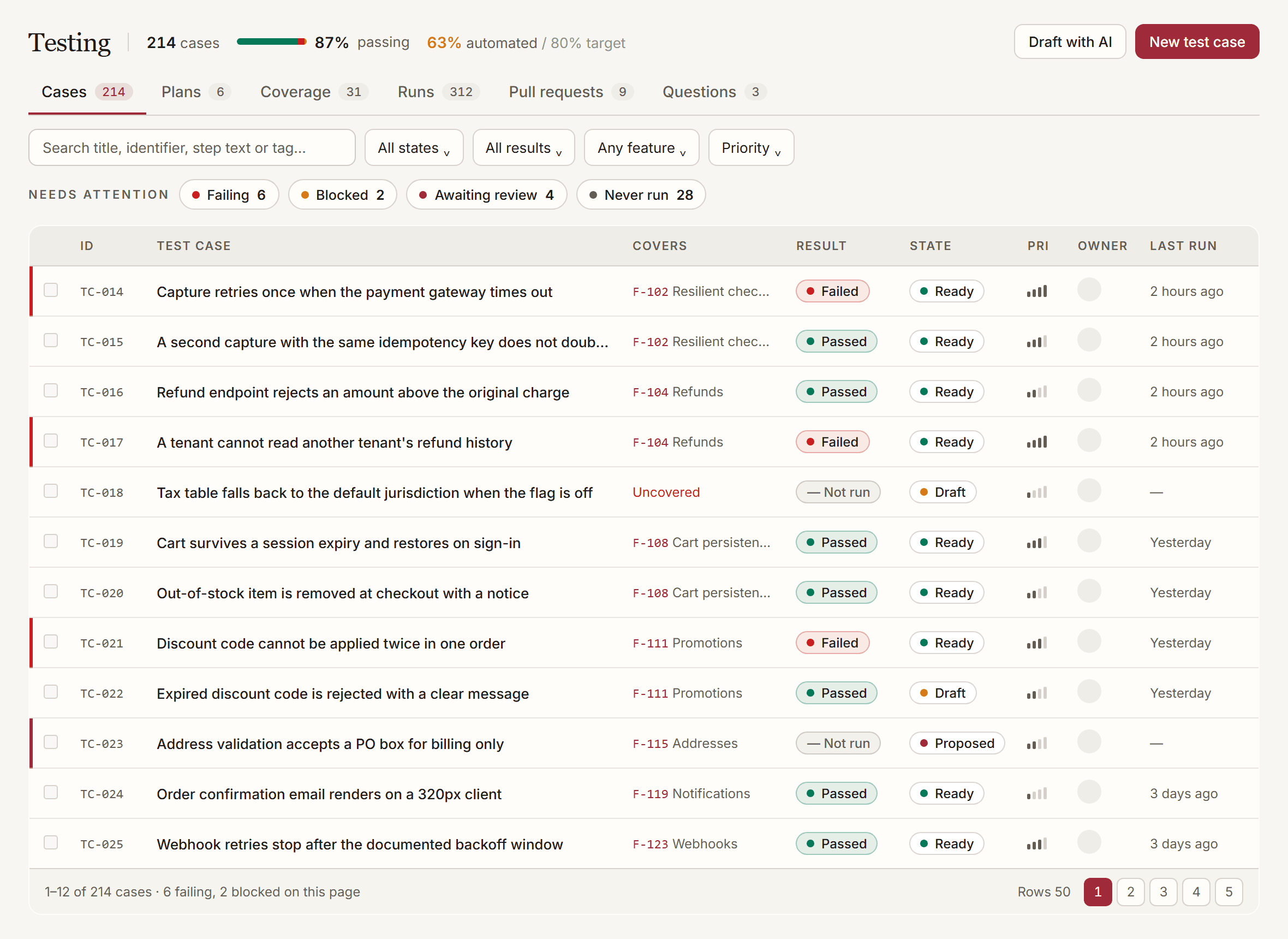
Each column header explains what it holds on hover, and a title or feature name too long for its column shows in full the same way. The table drops its lowest-value columns as the panel narrows rather than pushing them out of sight, so nothing is ever cut off.
The tab works in both personal and organization projects; cases never leak across that boundary.
Narrow the list
Only the filters you are actually using appear. Add filter offers the ones that are not on screen; each filter you add carries an x that clears its value and retires the control in one press.
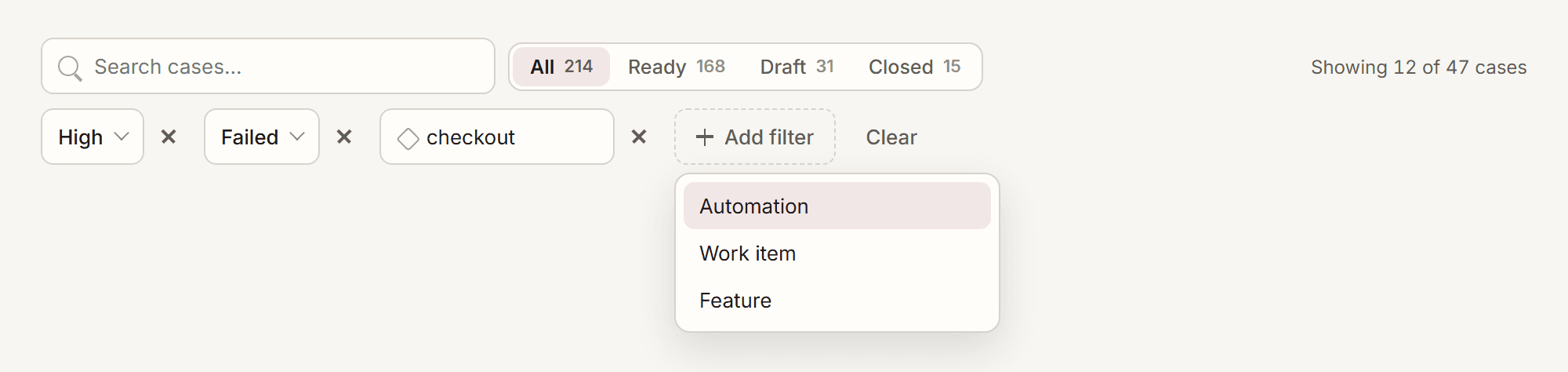
A filter that arrives already set — from a link somebody sent you, or a saved view — is always shown, whether or not you added it. A predicate narrowing the list with no visible control would leave you with no way to widen it again.
Filters, sort and page all live in the address bar, so any view you reach is a link you can send. Saved views name a combination you return to often; they are stored per browser, because a shortlist is a reading habit rather than project data. Press Ctrl/⌘ + K to jump to the search field.
Create a case with steps
Click New
On the Cases segment, click New. The case editor slides out from the right.
Fill in the basics
Give the case a title, an optional description (use it for preconditions or a summary), and set its state, priority, automation status, owner, and tags.
Add ordered steps
In the Steps editor, add rows of Action and Expected result. Use the row controls to insert, delete, and reorder steps — by dragging the handle or with the keyboard. The order you set is the order the case is read and synced in.
Save
Click Save. The case gets its next TC-NNN identifier and appears in the list. You can reopen it any time to edit fields or steps.
Clone to reuse a case. Use Clone on a case to copy it — fields and steps included — as a new DRAFT case. A clone is local: it starts unlinked from any PM tool.
Link a case to a feature
Connect a case to the work it verifies so coverage shows from both sides.
Open the case and find Linked work items
In the case editor, use the Linked work items control to search your project's features and bugs.
Pick a feature and the criteria it covers
Select the feature or bug. Covers AC then lists that feature's real acceptance criteria — tick every one this case verifies. A case proving criteria 1, 3 and 7 names all three, and the traceability matrix counts it under each.
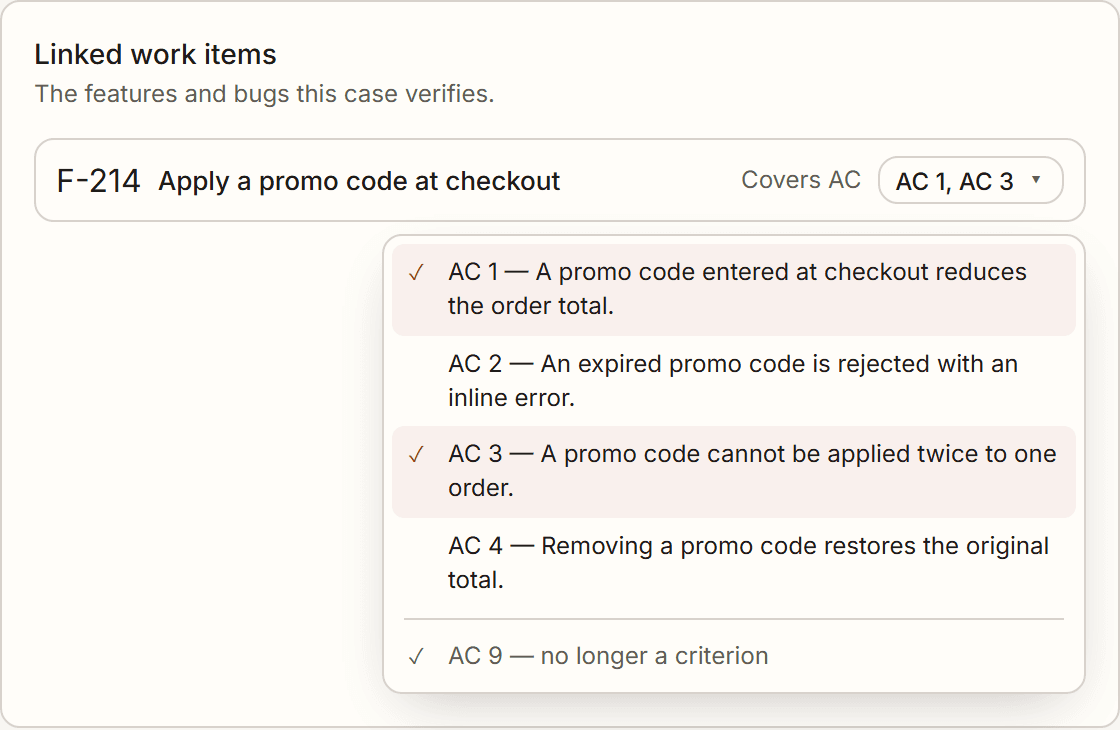
Two references to the same criterion count once, so a case is never double-counted. If the feature's acceptance criteria are written in a shape Fabric cannot split into a list, Covers AC falls back to a text box where you can type references separated by commas.
A reference to a criterion that no longer exists is kept, not dropped. If the specification shrinks under a case, its old reference stays visible and greyed out rather than disappearing — a case that was mapped and is now stale reads differently from one nobody ever mapped, and you want to be able to tell them apart.
See coverage on the feature
The feature now shows a read-only Tested by N cases line, so anyone looking at the feature can see it has test coverage. Remove a link from either side at any time.
Build a plan
A test plan is a flat collection of cases — no nested suites.
Create the plan
On the Plans segment, click New plan and give it a name. It gets a TP-NNN identifier.
Add cases
Open the plan and add cases with the picker. Reorder them by drag or keyboard, and give a case an optional section label to group it within the plan.
Reuse cases across plans
The same case can belong to many plans — adding it to a second plan does not move it out of the first. A case can appear only once per plan.
Sync to your PM tool
Test cases sync through the same connection your features use — Azure DevOps, Jira, GitLab, or Fizzy — so there is nothing new to connect. (See Project Management Sync for connecting a PM tool to your project.)
Turn on auto-sync (optional)
In the case editor, toggle Auto-sync to push the case to your PM tool every time you save it.
Sync now
Click Sync now to push the case immediately, or pull updates from the linked work item. A status chip shows whether the case is Connected, needs to Reconnect, or hit a conflict.
Resolve drift
If both Fabric and the tool changed the case, the chip shows a Conflict. Use Retry to push again, or Dismiss to clear the failure once you've handled it.
Your steps travel with the case — on every tool. When a case syncs, its ordered Action/Expected steps are written into the work item's description, so they show up in any PM tool. On Azure DevOps, the steps also populate the work item's native Steps field, so they render as a proper step grid.
Generate with AI
Let Fabric draft cases from a feature's acceptance criteria as a starting point.
Click Generate with AI
On the Cases segment, click Generate with AI and pick a feature.
Review the drafts
Fabric reads the feature's description and acceptance criteria and drafts editable cases with titled, ordered steps. Every generated case is created as Draft and linked to that feature.
Edit and promote
Open each draft, refine the steps, and move it to Ready when it's good. AI never finalizes a case — it only gives you a head start.
Each drafted case arrives already classified on two axes, so the coverage matrix fills in without anyone labelling cases by hand:
- Where it sits on the test pyramid — unit, integration, end-to-end or manual.
- What quality it checks — functional, security, performance or accessibility.
Where the AI declines to say, the case shows as Unset and you can set it yourself.
A case outside your project's depth tier arrives as Proposed, not Draft. On an Easy project, an end-to-end case the AI wrote anyway is created as Proposed — visible and reviewable, but not counted towards coverage until you accept it. The same applies to a security, performance or accessibility case on Easy or Average, even when it sits at an allowed level of the pyramid.
Nothing is discarded and nothing joins your suite unasked. Cases a sceptic role produced are exempt — enabling that role is what asked for them. The tiers themselves are on the Testing settings page.
Every case is available to the project AI. Each case you author is mirrored into the project's knowledge so the AI assistant takes it into account when it helps your team — the same way it considers your documents and decisions. Deleting a case removes it from that context.
Read a run's evidence
Open a run in the Runs segment and each case expands into its step log. What it records depends on which runner produced it:
- Agentic runs record one row per authored step, with what the runner observed and — where your evidence policy asks for one — the screenshot it captured.
- Scripted runs record one row per action in the saved plan: PASSED, FAILED (with the expected and received values, when the failing step was an assertion) or SKIPPED for the actions after it. Scripted runs capture no screenshots — a saved plan is deterministic, so the observation text is the full record.
Where a screenshot exists, it is shown under the step it belongs to, not behind a link, so finding the frame where a run went wrong is a matter of scrolling rather than opening every step in a new tab. Two controls sit beneath it:
- Open full size — the whole frame, in a new tab.
- Download — saves it as
TC-014-step-3.png, named after the case and step. This is the one worth knowing about: a screenshot attached to a bug report is useless a day later if its filename is a storage identifier.
Evidence links expire after five minutes. The image is a page from your own application, often signed in, so the links Fabric mints are deliberately short-lived. A run detail left open past that says the link expired and to reopen the run — it does not silently show a broken image.
Turn an Agentic run into a reusable script
Mode B runs a saved declarative Playwright action plan instead of asking an agent to interpret every step again. Open an existing case and choose Create script:
- Agent run + repository lets you select any previous Agentic execution for that case, including older runs, and combines its observed steps with relevant indexed repository code.
- Repository only uses the case and indexed code without prior run observations.
- Manual opens the editor for your own JSON action plan and uses no AI.
AI-assisted generation can use repository embedding lookup and the configured generation model once. Future Mode B executions run the saved plan with zero model calls. You can edit the plan at any time. Every saved version keeps its timestamp, author and origin; History shows a diff and can restore an older version without deleting newer history.
The saved plan is validated data, not executable code. It supports a closed set of same-origin navigation, interaction, and assertion actions. Fabric's trusted runner holds the environment credential; the plan cannot access credentials, Node APIs, Playwright internals, or arbitrary network requests.
Next Steps
Testing settings
Set how deep test cases go, and whether Fabric drafts them at all
CI Test Results
Pull automated test results from your CI and link them to cases
Project Management Sync
Connect Azure DevOps, Jira, GitLab, or Fizzy to your project
Projects
Organize documents, features, and test cases in a project
Overview
How Fabric's testing feature fits together — where cases come from, where results come from, what reads them, and which settings change any of it.
A feature's Testing tab
The readiness verdict for one feature — coverage against its acceptance criteria, traceability, warnings, CI results and sign-off.