Time Tracking
Log your time on projects and work items, run a timer, confirm the time Fabric suggests from your own work, and export a month-end report.
Fabric records the time you spend on a project, and optionally on one work item in it. You log time on My time, run a timer from any page, or confirm the entries Fabric suggests from your own meetings, test work and work item edits. Organization admins read everyone's time in a monthly report and export it as CSV.
Where to find it. My time in the sidebar holds your own time. Project and organization settings each have a Time tracking section, and Organization Settings ▸ Time reports holds the report. Only you see your My time page.
Log time
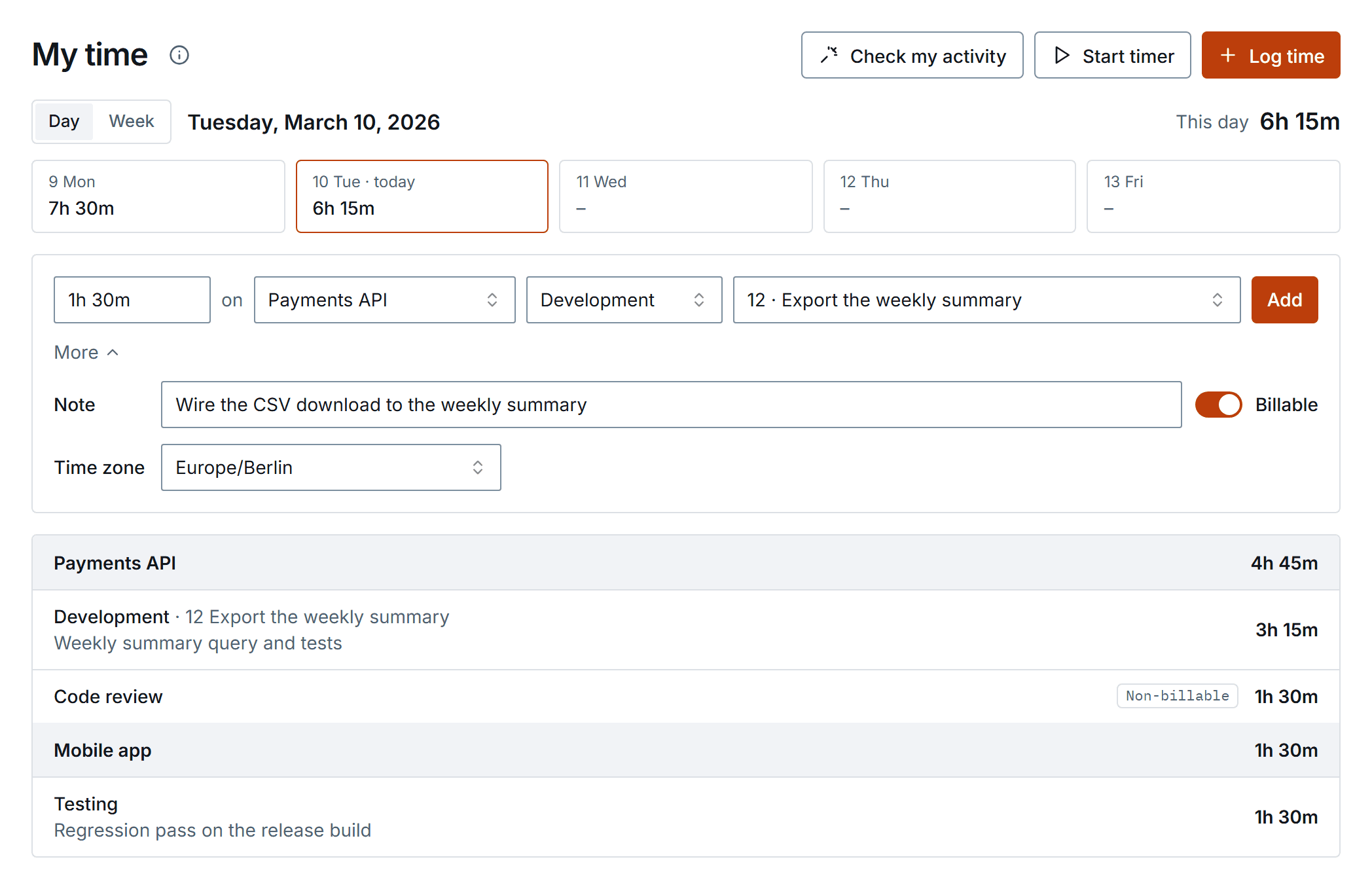
Type how long you worked
Type a duration such as 1h 30m, 90m, 1:30 or 1.5. The field also offers the common durations from 15 minutes to 8 hours; press the down arrow to pick one.
Choose the project, activity and work item
The project and activity start from your last entry. The work item is optional. The project list shows only the projects you can see and log time on.
Add it
Press Add or Enter. The entry appears under its project, and the day and week totals update.
Open More to add a note, change Billable, or pick the entry's time zone. The time zone starts from the one in your profile, or from your browser's when your profile has none. Switch between Day and Week to see your time across projects; the strip above the entries shows each day's total.
A work item page also shows My time on this item, with your own entries on it and a Start timer button.
When start and stop times are required
If your project or organization requires start and stop times, the duration field becomes two time fields and Fabric calculates the duration. An entry without them is refused.
Questions before saving
Fabric asks before it saves an entry that looks like a mistake:
- an entry that looks like one you already logged on the same day;
- a timed entry that overlaps another timed entry, on any project, including one that runs past midnight;
- a day that would go over 16 hours.

Choose Yes, add it to save the entry anyway, or No, skip to save nothing.
Some errors cannot be overridden: a zero duration, missing start and stop times on a project that requires them, or a work item from another project.
Run a timer
Press Start timer on My time or on a work item. The timer is kept by Fabric, not by the browser tab, so every tab and device you are signed in on shows the same timer.
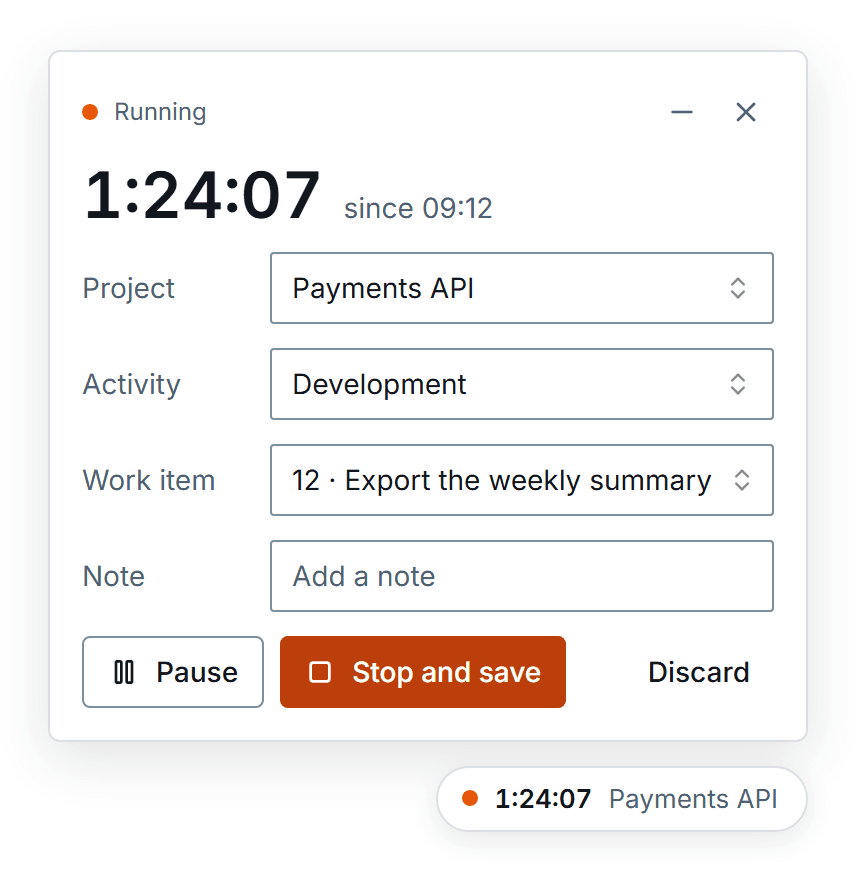
While a timer runs or is paused, a chip sits in the bottom-right corner of every page. Open it to change the project, activity, work item or note, or to:
- Pause and Resume the timer;
- Stop and save it as time entries;
- Discard it without saving, after a confirmation.
When start and stop times are required, a stopped timer saves one entry for each stretch it ran between pauses. Otherwise it saves one entry with the total duration. A stretch shorter than a minute is not saved. Undo after a stop removes what was saved.
If you forget the timer
When the timer has run for a while with no activity from you in Fabric, the panel asks when you stopped working. It proposes the time of your last action and names it.
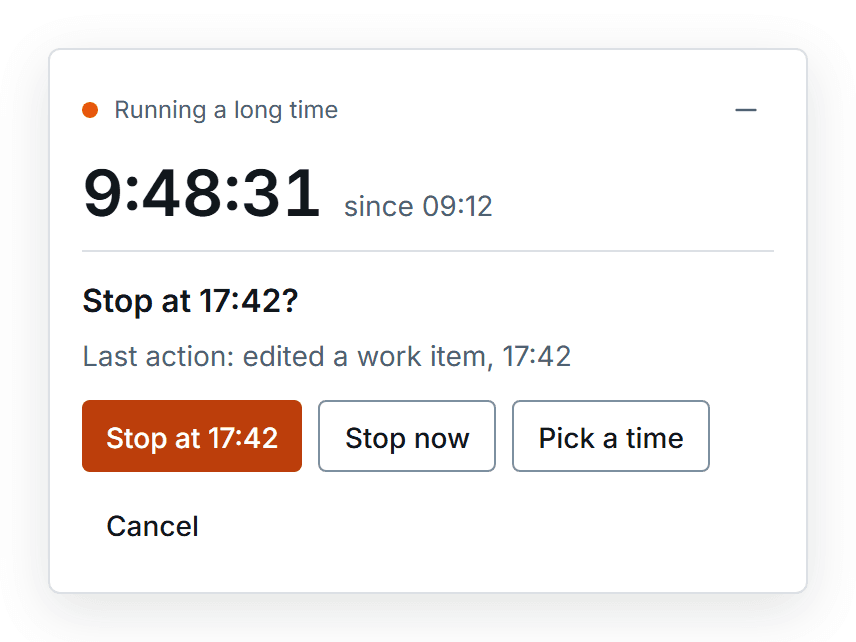
Choose Stop at to save the time up to that action, Stop now, or Pick a time between the start and now.
Hide the widget or get reminders
Close the widget with its × to choose between:
- Hide until the next timer: the timer keeps running, and a dot on My time in the sidebar shows it;
- Don't show the timer widget: the widget stays off until you turn it back on.
The timer settings on My time turn the widget back on and turn on Reminders. A reminder is one browser notification per timer, when it has run over four hours or when you seem to have stopped working. It arrives even when the Fabric tab is in the background, and clicking it opens the stop question. Your browser must allow notifications from Fabric.
Confirm suggested time
Check my activity on My time collects evidence of your own work from the last few days and proposes entries under To confirm:
- meetings you started and had the meeting agent join;
- test runs, test results and test case work;
- edits to a work item's description and acceptance criteria;
- pull requests you authored on github.com.
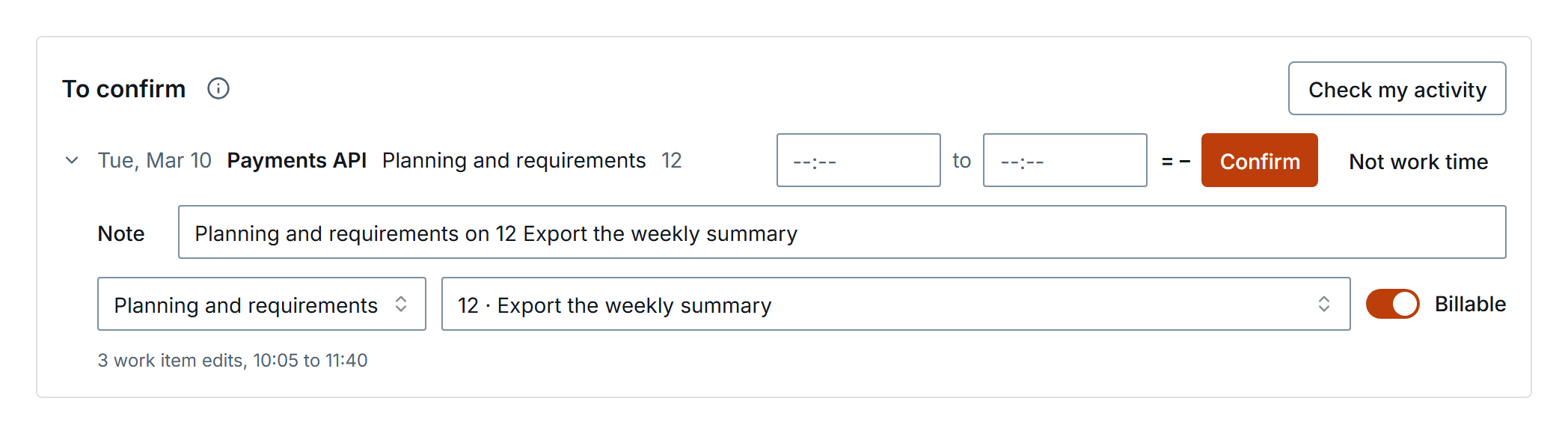
Each row covers one project, work item and day. AI writes the note and picks the activity. The duration is filled in only when the evidence has a real start and end, such as the time the meeting agent spent in your meeting; otherwise the row stays blank and you type how long you worked.
- Confirm saves exactly one entry, even if you press it twice.
- Not work time dismisses the row. The same evidence is never proposed again.
- Open a row to change its note, activity, work item or Billable before you confirm.
Fabric does not propose work you already logged. An entry on the same project and day covers that day's evidence for its work item, and an entry with no work item covers the whole project for that day.
A suggestion that nobody confirms expires at the end of the following week.
Pull requests
A pull request counts as your work only when its author matches the github.com login on your own GitHub connection in the organization. A login that two members share counts for nobody. Pull requests on GitHub Enterprise, GitLab and Azure DevOps are not used.
Automatic suggestions
On Time and materials projects, Fabric also checks your activity on its own: after a meeting you started ends, and when you open My time if the last check is more than 12 hours old. Fixed bid projects are never checked automatically; use Check my activity there. If a project switches to Fixed bid, its automatic suggestions leave To confirm, and they come back if it switches back.
Project and organization settings
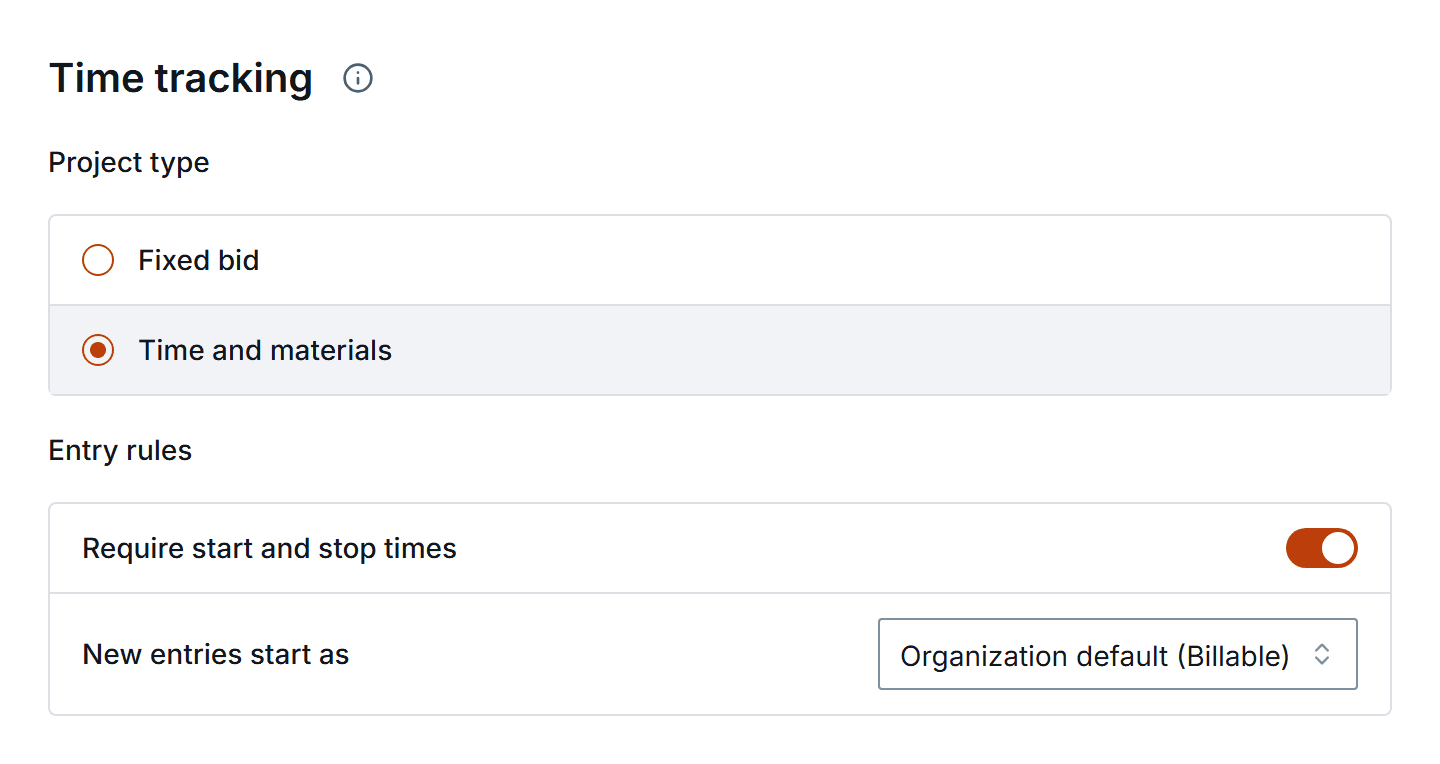
Each project has a Time tracking section in its settings:
- Project type: Fixed bid (the default) or Time and materials. Time and materials projects appear in the month-end report and get automatic suggestions.
- Require start and stop times: members enter two times instead of a duration.
- New entries start as: the Billable value each new entry begins with. Members can change it on any entry.
Organization Settings ▸ Time tracking sets the same two entry rules for every project. When the organization requires start and stop times, the project switch is locked and reads Set by your organization. A rule change applies to new entries; existing entries keep the rule they were saved under.
Reports and CSV export
Project admins and organization owners and admins can read reports. A member who is not one of them sees only their own time.
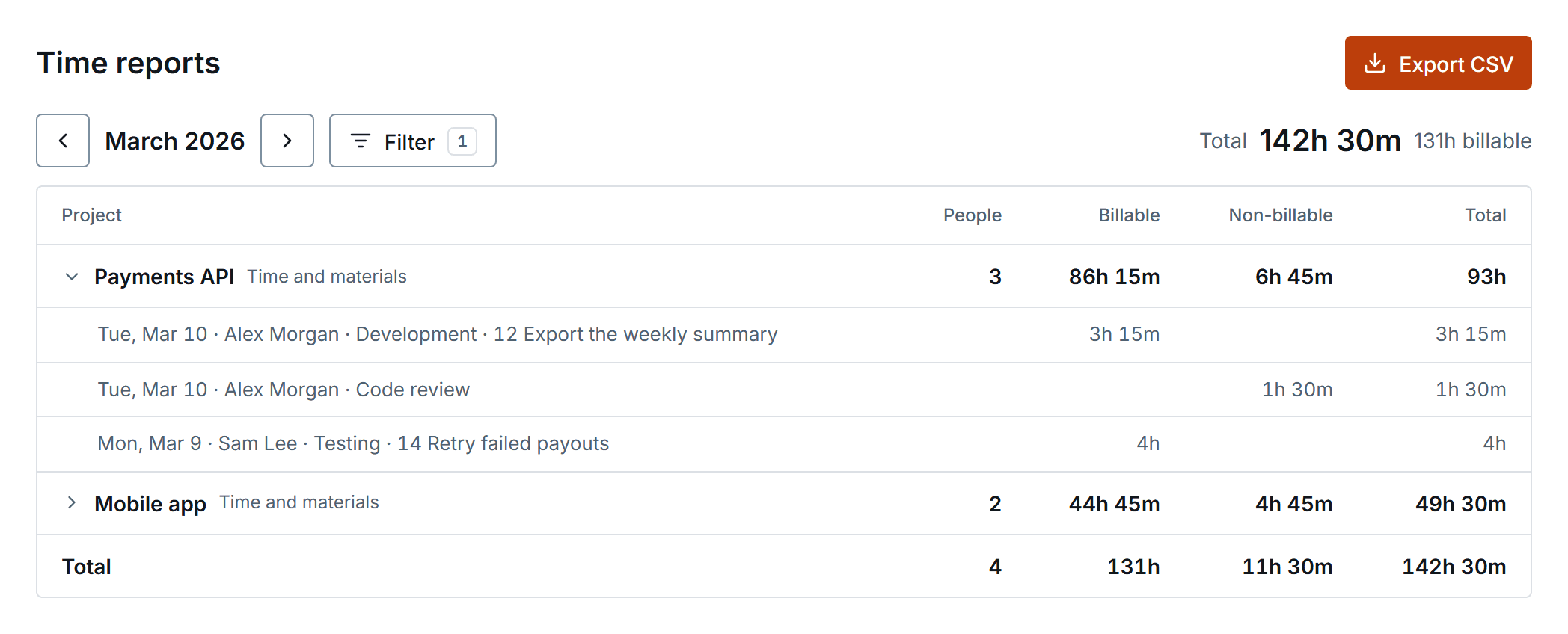
Organization Settings ▸ Time reports opens on the current month, filtered to Time and materials projects. Each project row expands to its entries, and the footer shows the organization's total. The report uses each project's current type, so switching a project's type moves all of its past time into or out of this view.
Each project has its own report under Project settings ▸ View time report.
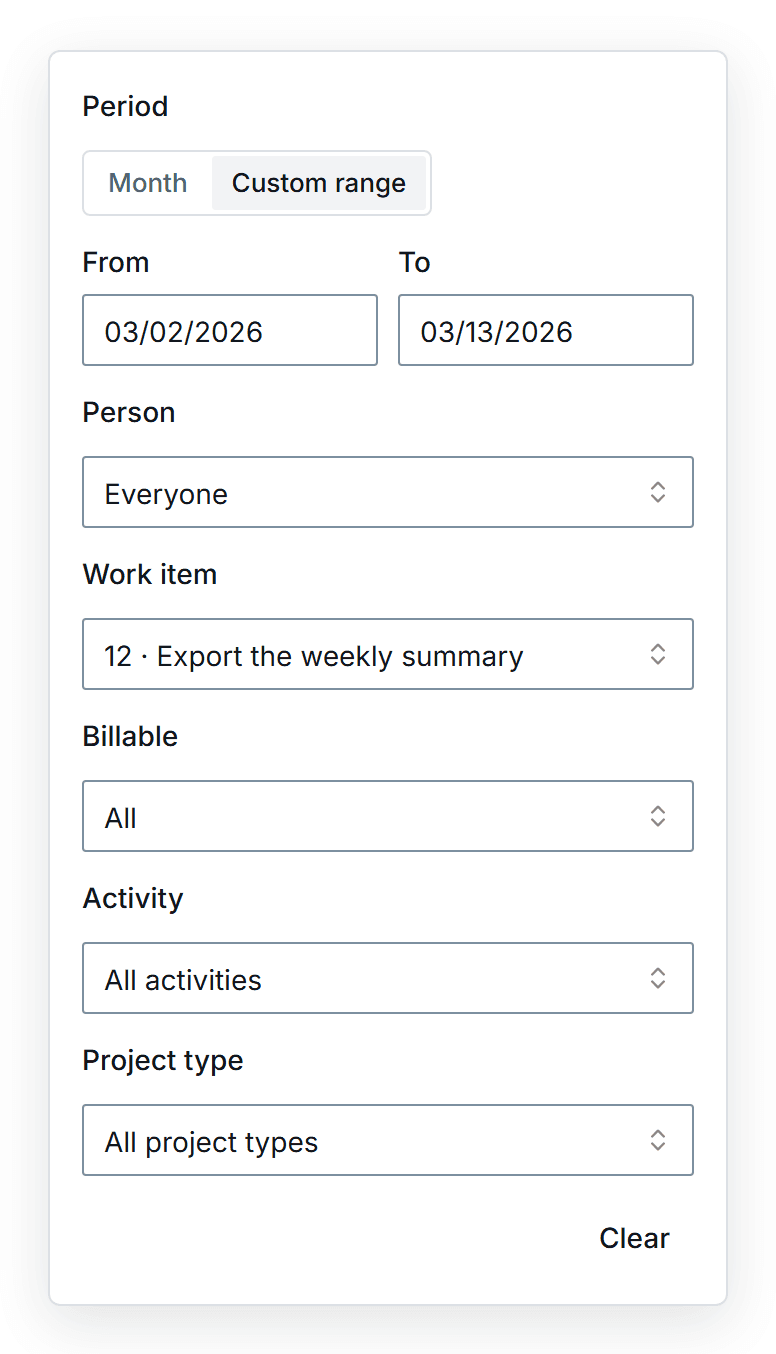
Filter a report by person, work item, activity, billable status and project type, over a month or a custom range of up to 366 days. Entries stay in reports after a member leaves the organization or deletes their account, under the name they had at the time.
Export CSV downloads the filtered report, one line per entry, with these columns:
work_date, user, project, project_type, work_item_reference, work_item_title,
activity, duration_minutes, duration_hours, billable, description,
start_at, stop_at, timezonestart_atandstop_atcarry the entry's UTC offset, for example2026-03-10T09:00:00+01:00. They are empty for duration-only entries.billableisbillableornon-billable.- The file is UTF-8 with a byte-order mark, so Excel opens names with accents correctly.
- A cell that a spreadsheet could run as a formula is written as plain text.
Every export is recorded in the audit log as time.report_exported, with its scope, dates, filters and row count, but not the entries themselves.
Who can log time
You can log time on a project when you can edit it. A project you cannot see answers Project not found, and nothing is saved. Guests on a project who are not members of the organization cannot log time.